30 September 2021
The receipt feature keeps track of receipts and expenses
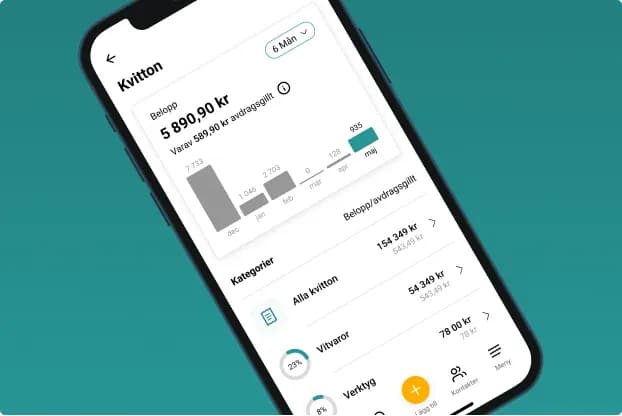
The receipt feature is one of our most used features. Quite naturally, we think, since it gives homeowners full control of their investments in the home and how much of them is deductible. With the receipt feature, they're always up to date.
As a homeowner, it can of course sometimes feel nice not to know how much you've invested in your home - it just sort of disappears. Feels a bit cheaper. But then comes the time when something breaks, or for some other reason you need to know the purchase date and price, or think about when the move comes …. 90% of all tax declarations made when moving are incorrect, for example.
Imagine how convenient it would be if all customers had their receipt to hand for complaints, or if, when they sell their home, the next owner also knows how old the fridge is, for example - handy when they're looking for a spare part or it needs maintenance - which warranties they have, and so on.
If your customers add and save their receipt in their House:ID, it's always there. It also gives the customer a running view of how much they've invested in their home and how much of the investments during the chosen period are deductible. If they categorise their receipts, they'll also see the total per category. It's smoothest of all, of course, if you as the supplier of the products email the receipt straight to the customer's home ID.
Let us give you a real example from when Micke, one of our founders, updated his kitchen furniture! You're probably a homeowner yourself, after all?!
The IKEA receipt in the inbox before I'd left the self-checkout
"We've updated the furniture in our kitchen, and the rug was bought at IKEA, a Stoense. My wife and I are standing at the self-checkout, and the screen asks whether we'd like our receipt digitally. It prompts us to enter an email address. Luckily, I've changed our House:ID's email address so I can remember it. My tip is to do the same! (see the guide below). I type it in, and before I've left the checkout area I get a push notification saying I've received a receipt in our House:ID's inbox. Before we reach the car, my wife has added the receipt to the product in our House:ID."
How do I do it?
- Use the + sign at the bottom of the screen
- Choose receipt
- Photograph or scan the receipt, or use an existing picture of it
- Fill in the details; if you have a subscription, you can use receipt scanning.
- Link it to an event on the timeline, a product, a building part, a room and more
- Done!
All you need to do is make sure you regularly photograph or email receipts/invoices straight to your home's own email address.